A customer places an order. Within a minute there is a tidy sales order in Exact Online. And then? Then the customer waits. For a confirmation someone has to write by hand, in between everything else - or that never arrives at all.
In the video below we show how to hand that over to a scheduled task. Every hour your AI assistant checks through Ledger Botje whether there are new sales orders, looks up the email address of the person who ordered and sends the confirmation. Without you doing anything.
The starting point: an ordinary sales order
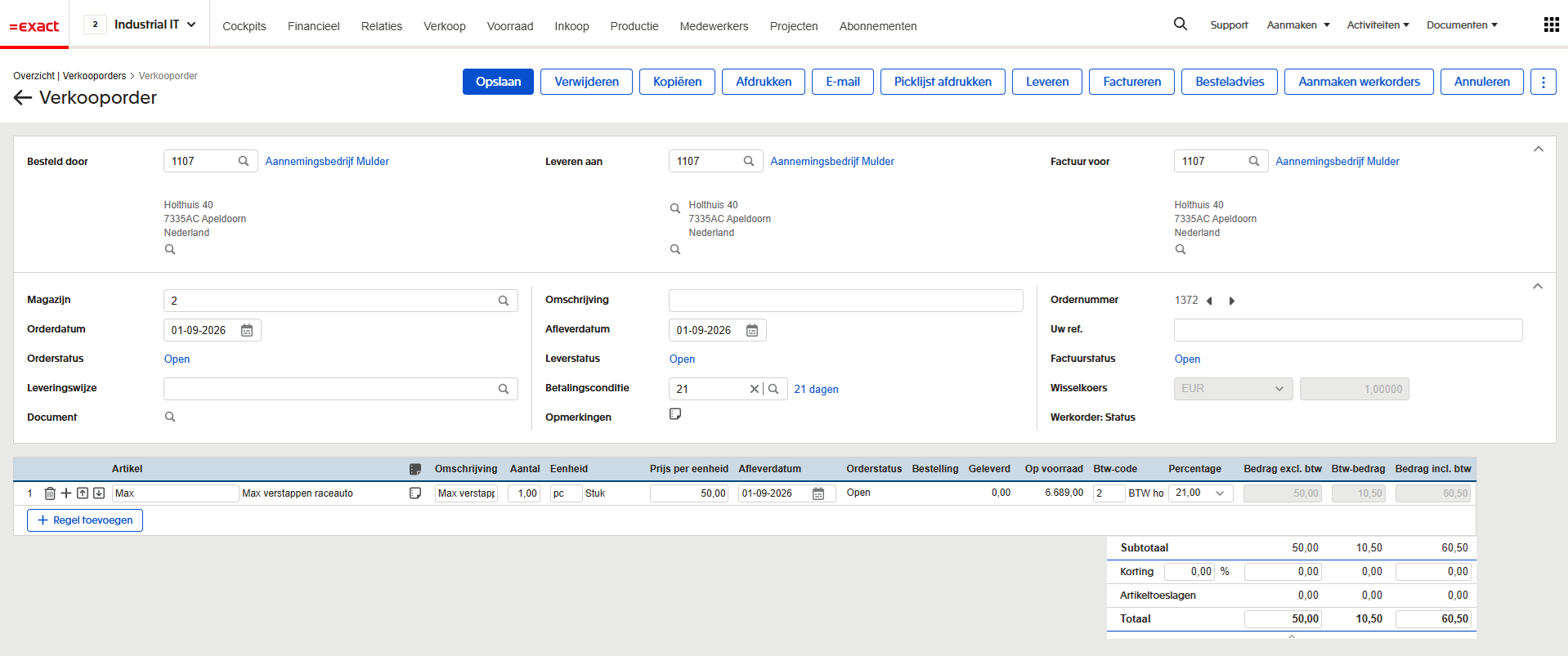
There is nothing special about the order in the video. Sales order 1372 for Aannemingsbedrijf Mulder, one line, 60.50 euro including VAT, created the way you create every order. You do not have to fill in anything extra in Exact Online or keep a field free for the automation.
The scheduled task
The work sits in the instruction you write down once. In the video that is a scheduled task in Claude that runs every hour, but the same principle works in any AI assistant that can run tasks on a schedule.
Ask Ledger Botje for the sales orders created in the past hour.
For every order:
Look up who placed the order.
Get the email address. When no email address is available, skip the order and mention it in your summary at the end.
When there is an email address, send a message to it. Fill in the values from the sales order wherever a placeholder starts with #.
Subject: [Ledger Botje] Confirmation of sales order #OrderNumber
Message:
Dear #Customer.FullName,
Thank you for your new order.
We have created sales order number #OrderNumber.
We will get started right away.
Kind regards,
Ledger Botje.
Two things in that text do most of the work. The line about the missing email address stops the assistant from inventing an address or pulling one in from somewhere else. And the placeholders starting with # make clear which parts come from the order, so the message is not phrased slightly differently every time.
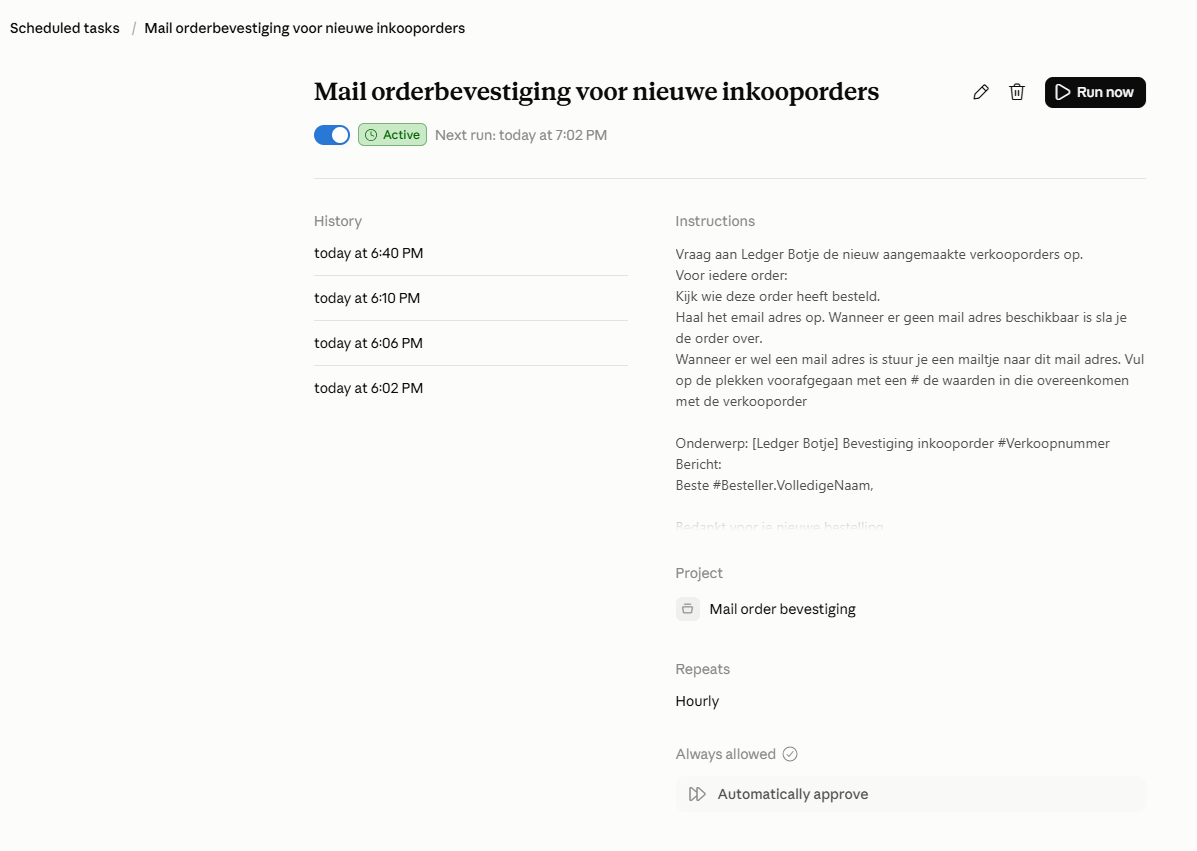
Set the task to automatically approve if you want it to run when you are not at your screen. That is exactly the difference between a handy prompt and a process that runs.
The result
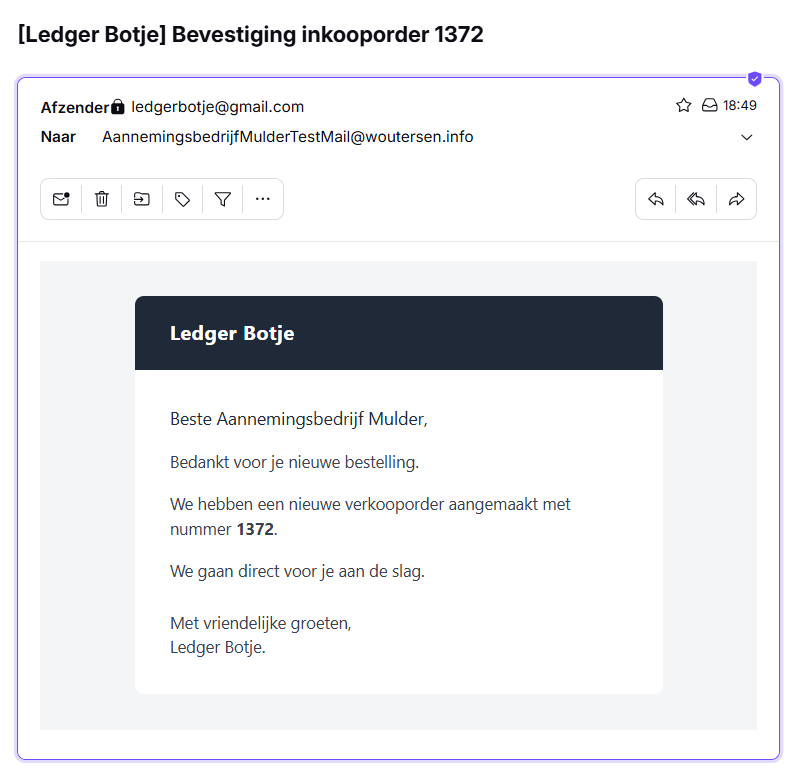
Fifteen minutes later - or an hour at most, depending on your schedule - the customer has their confirmation.
Who does what
A misunderstanding we hear often: Ledger Botje does not send the email. The division of labour is this:
| Part | What it does |
|---|---|
| Exact Online | Holds the sales order and the customer details |
| Ledger Botje | Reads the new orders and the email address of the customer |
| Your AI assistant | Runs the task on schedule and composes the message |
| The mail connection | Sends the message from your own address |
That separation is deliberate. You decide which address the mail comes from, and the connection to Exact Online stays read-only - nothing in your administration is changed. A Basic subscription is therefore enough.
What to watch out for
- Duplicate emails. Match the time window of the task to its schedule. If the task runs hourly, ask for orders from the past hour. Run it manually in between and you cover that same window again.
- Customers without an email address. Ask the task to list them in its summary. That doubles as a tidy clean-up list for your customer records.
- Test on a quiet administration. Keep the schedule on manual first and check that the message looks the way you want before switching it to automatic approval.
- The tone of the message. What the instruction says is what comes out. If you want a different template per customer group, write that into the prompt literally.
What else this shape is good for
The same pattern - a scheduled task that asks for something and turns it into a message - works for more than order confirmations:
- A daily overview of orders due for delivery today.
- A reminder to customers with an invoice outstanding for more than thirty days.
- An alert when the stock of an item drops below a threshold.
To see what data your assistant can pull from Exact Online, have a look at the tool overview. Or start by connecting your AI assistant.