Server details
Use the details below to add the Ledger Botje MCP server to your AI assistant.
MCP server configuration
https://www.ledgerbotje.nl/app/mcp{
"mcpServers": {
"ledgerbotje": {
"url": "https://www.ledgerbotje.nl/app/mcp",
"transport": "streamable-http"
}
}
}
Installation per AI assistant
Choose your AI assistant and follow the steps to connect Ledger Botje.

ChatGPT
- Open ChatGPT (requires Pro, Team, Enterprise or Edu subscription)
- Go to Settings > Connectors > Advanced settings
- Enable Developer Mode
- Click Create to add a new connector
- Enter the server URL:
https://www.ledgerbotje.nl/app/mcp - ChatGPT automatically detects the OAuth2 authentication. Log in with your Exact Online account

Microsoft Copilot
- Open Copilot Studio and go to your Agent
- Navigate to Tools > Add Tool > New > MCP
- Enter the MCP server URL:
https://www.ledgerbotje.nl/app/mcp - Choose authentication: OAuth 2.0
- Authorize with your Exact Online account
- The Ledger Botje tools are now available in your Copilot Agent
Microsoft Copilot Studio
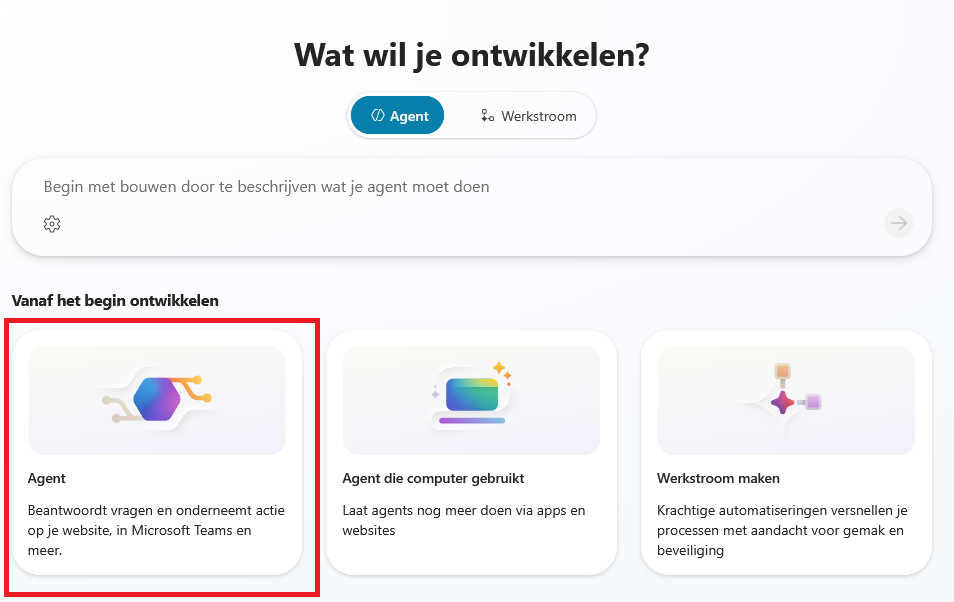
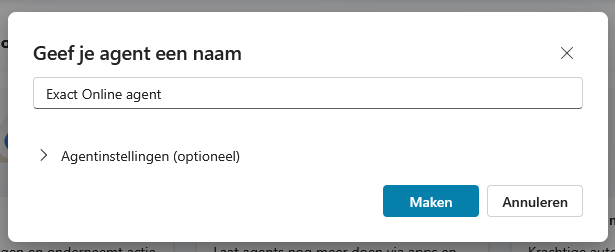
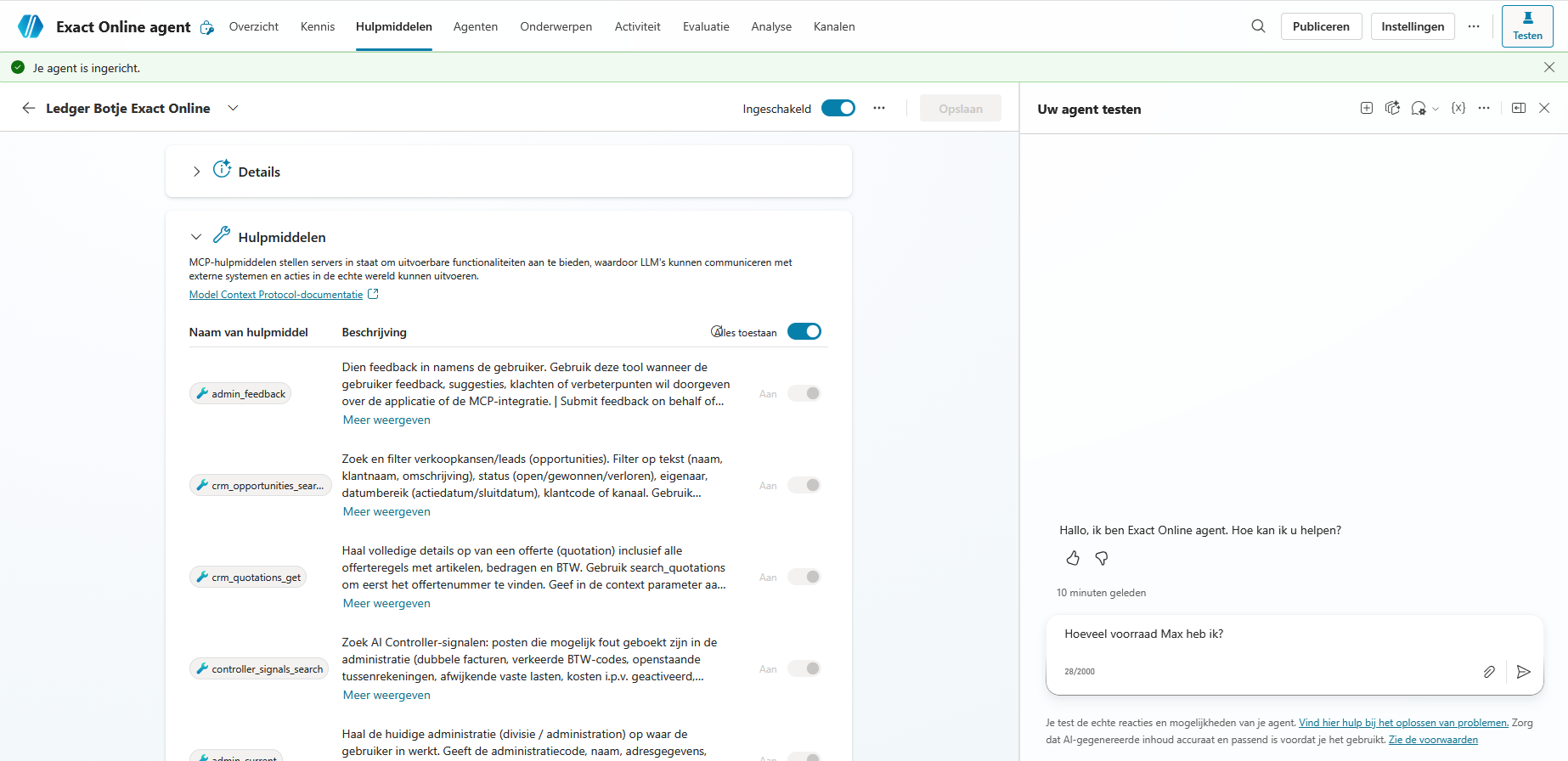
- In Copilot Studio click Create and under Develop from scratch choose Agent. Give the agent a name (e.g. Exact Online agent) and click Create
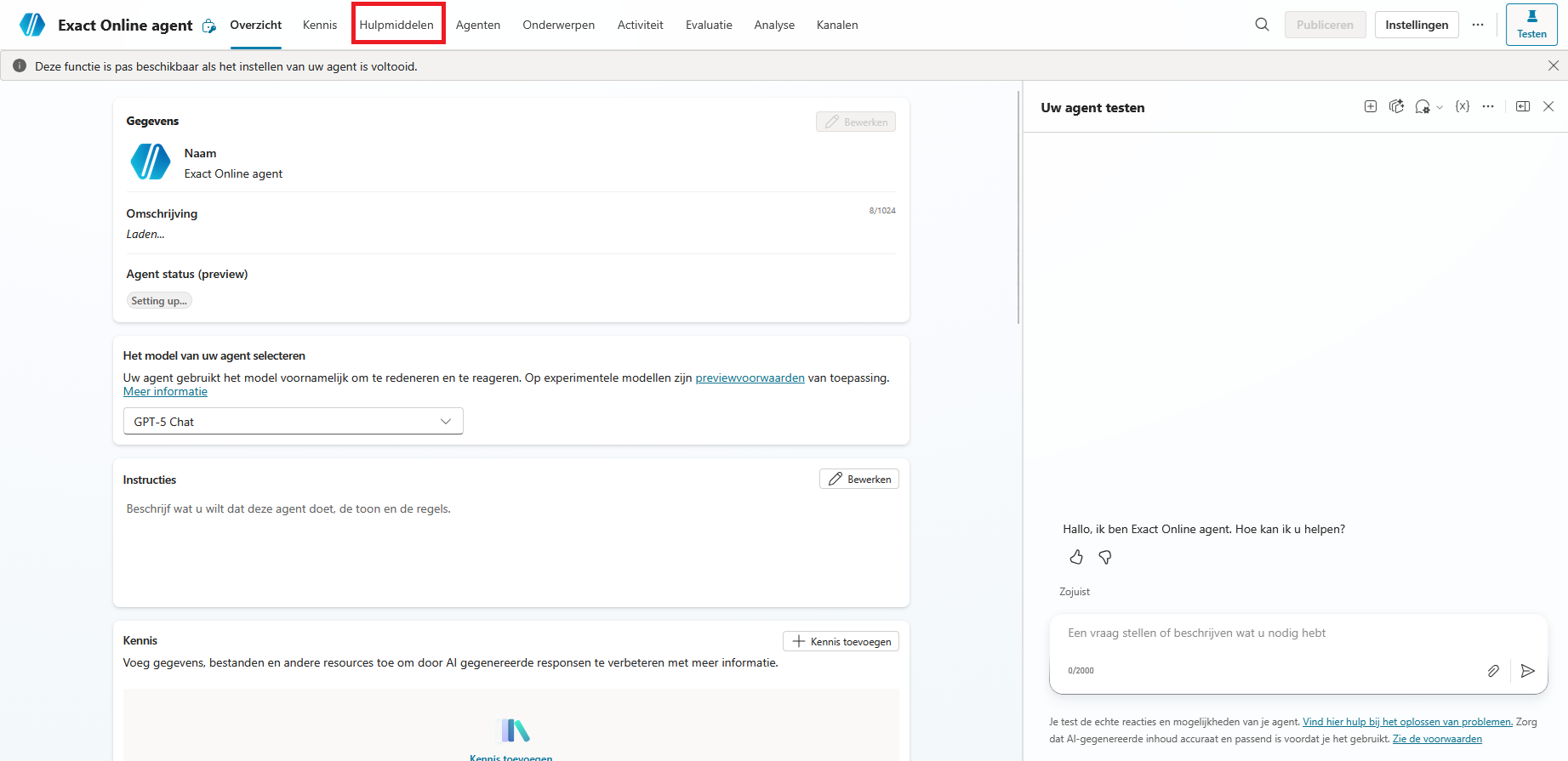
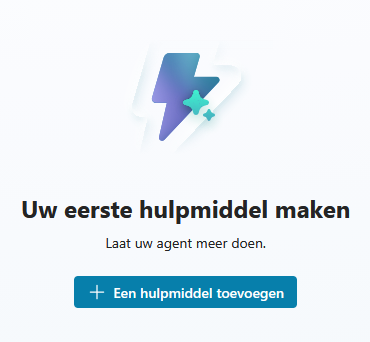
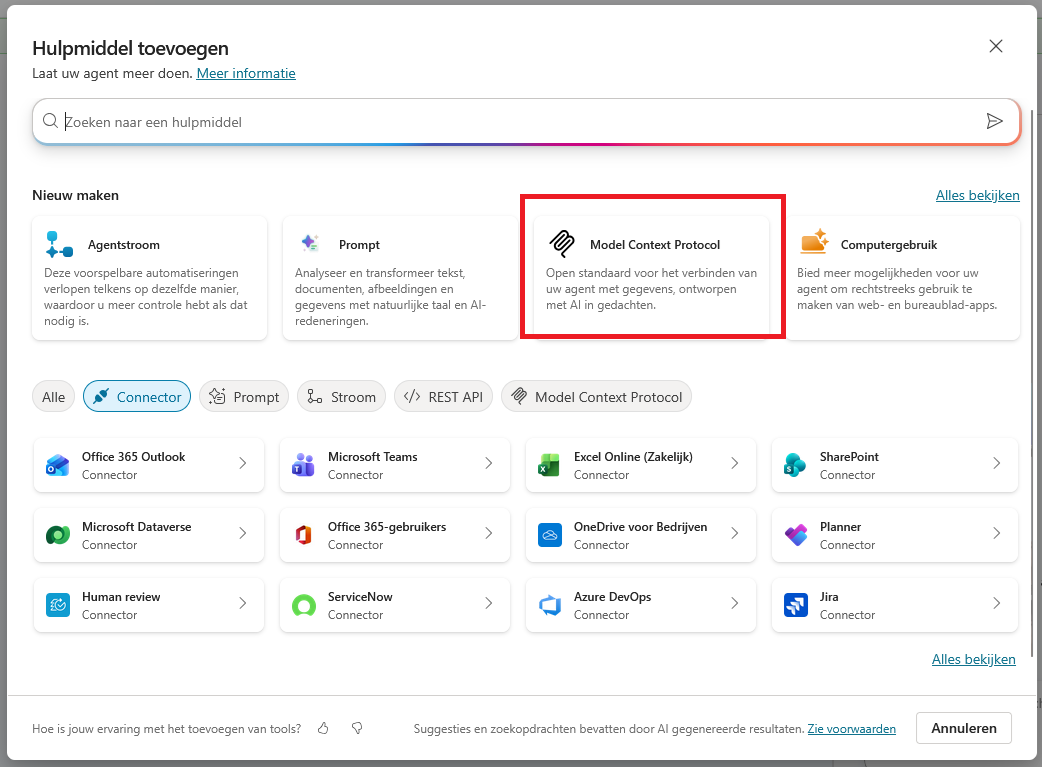
- In your agent, open the Tools tab and click Add a tool
- Under Create new, choose Model Context Protocol
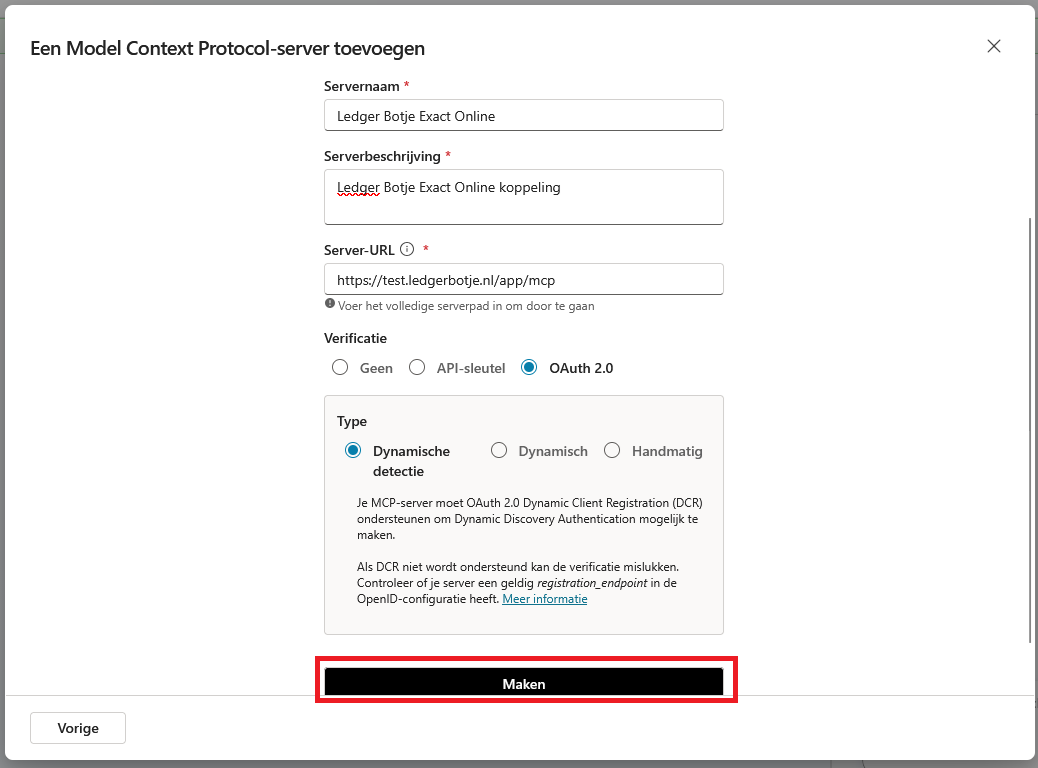
- Enter the server name Ledger Botje Exact Online, a short description and the server URL
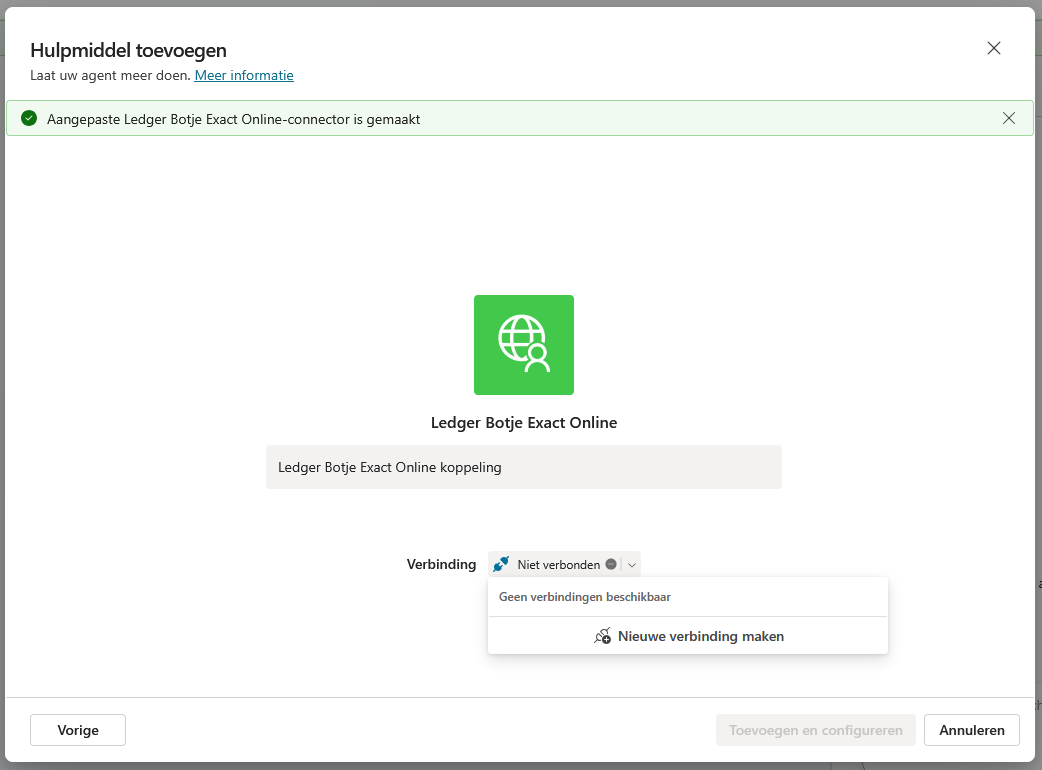
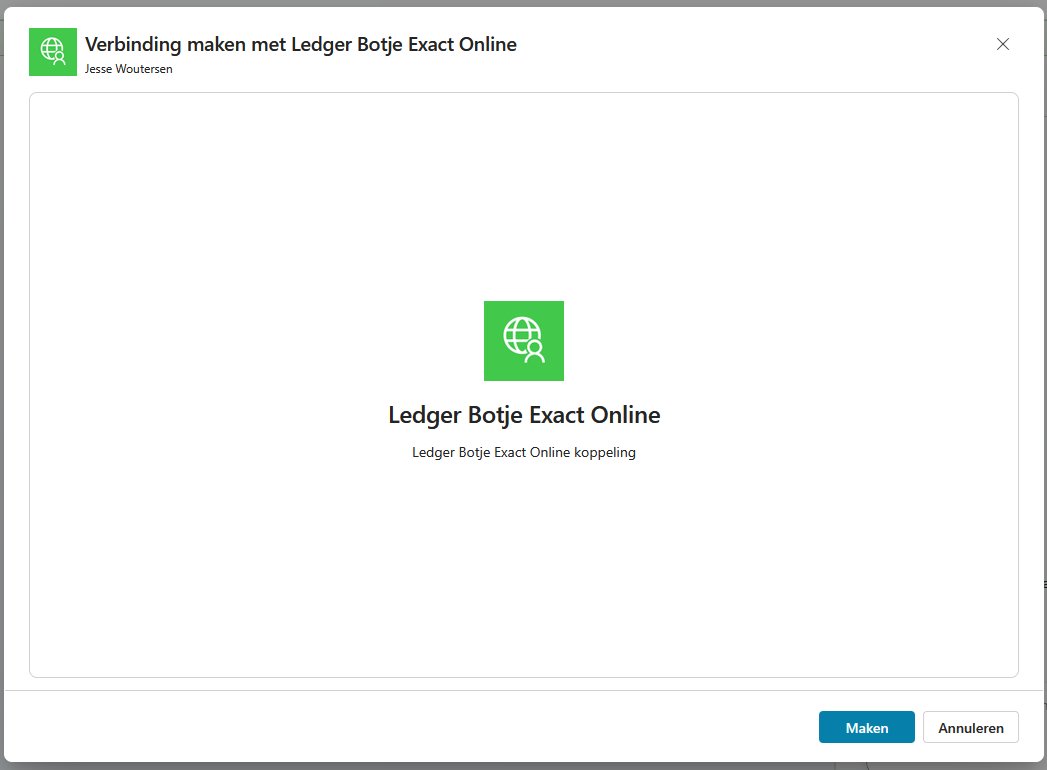
https://www.ledgerbotje.nl/app/mcp. For Authentication select OAuth 2.0 and for Type choose Dynamic discovery, then click Create - Open the dropdown next to Connection, choose Create new connection and click Create to start the OAuth flow
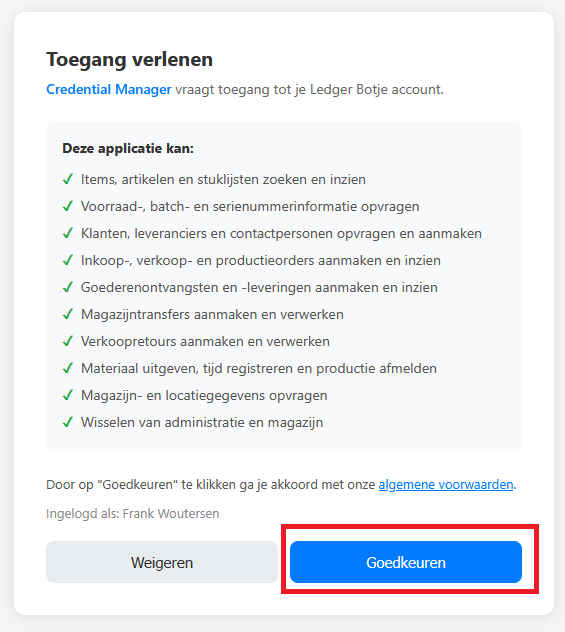
- Sign in with your Exact Online account and click Approve to grant Ledger Botje access
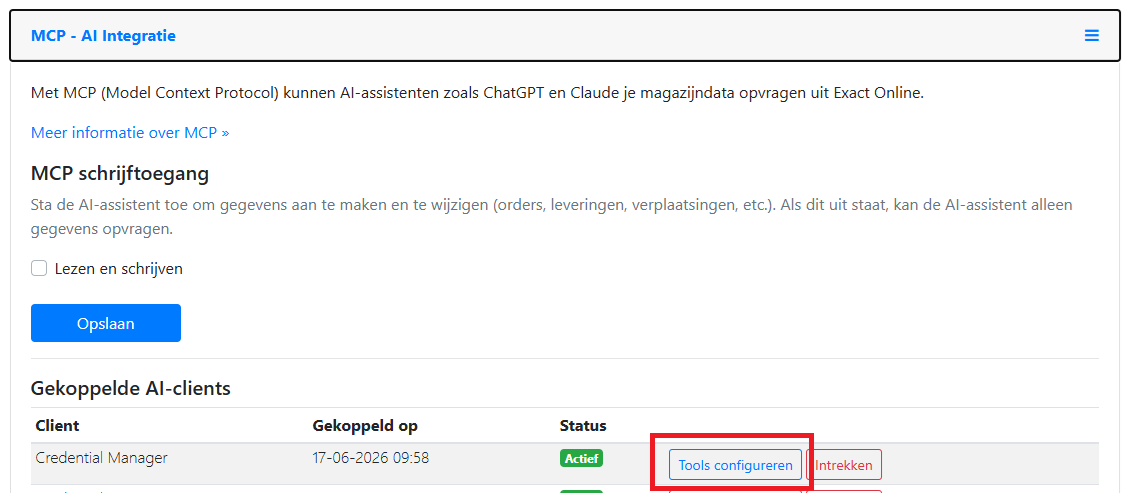
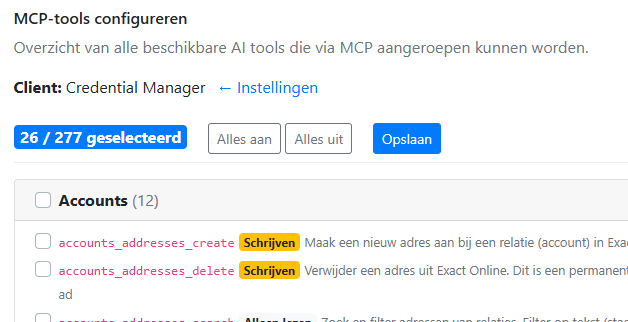
- Important — max. 70 tools: Copilot Studio supports at most 70 tools. In Ledger Botje open Settings → MCP, click Configure tools next to the just-connected client, select at most 70 tools (the admin tools always stay enabled) and click Save
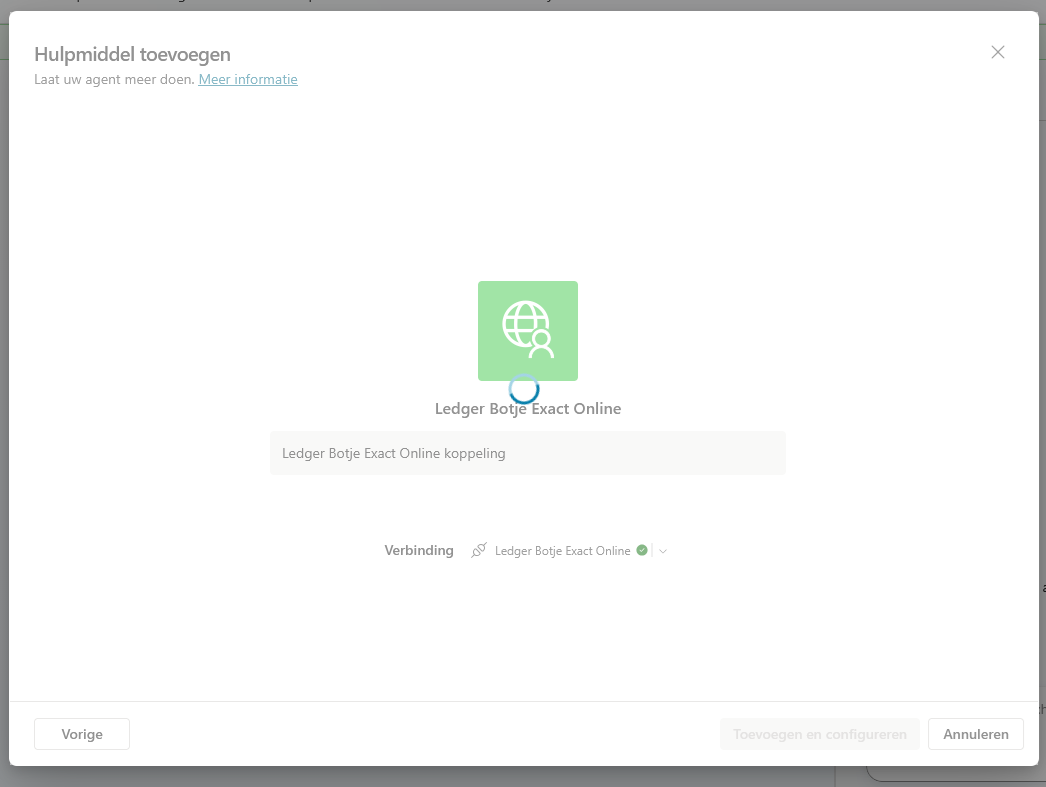
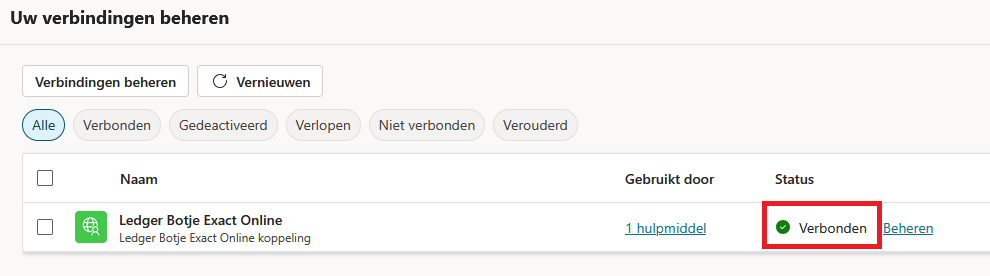
- Back in Copilot Studio the connection is active (green checkmark). Click Add and configure to add the tool to your agent
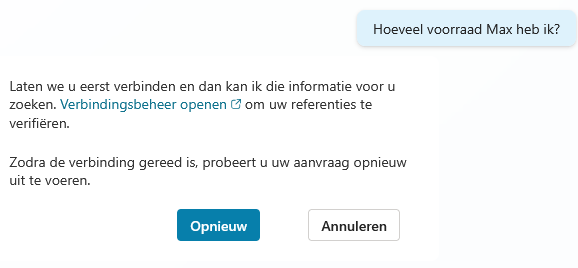
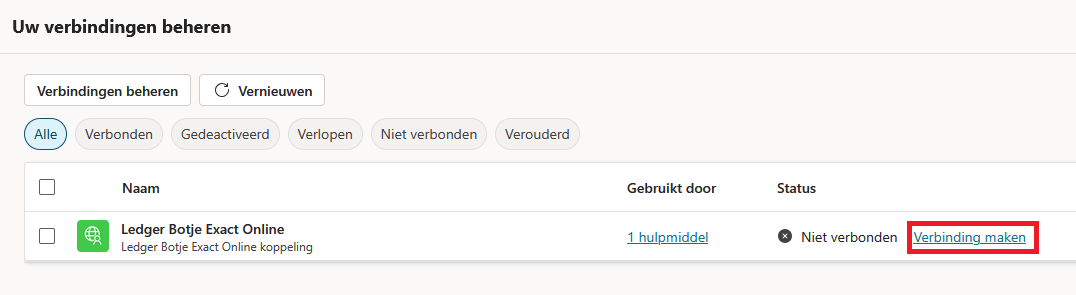
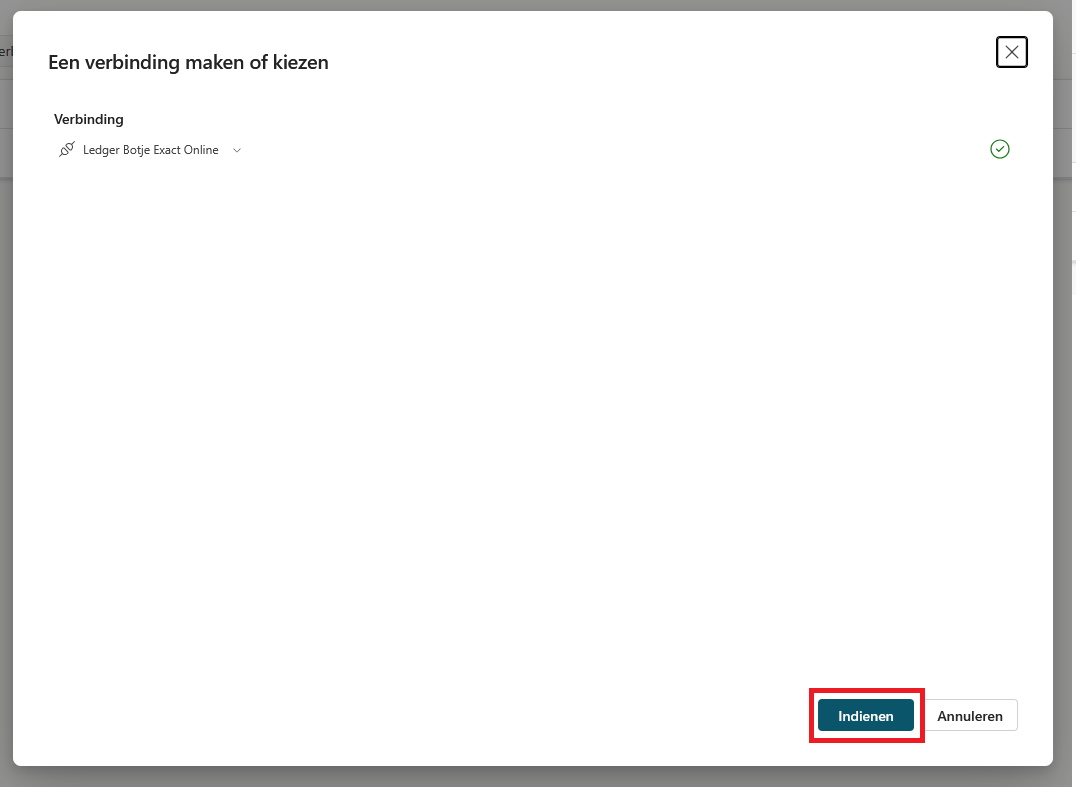
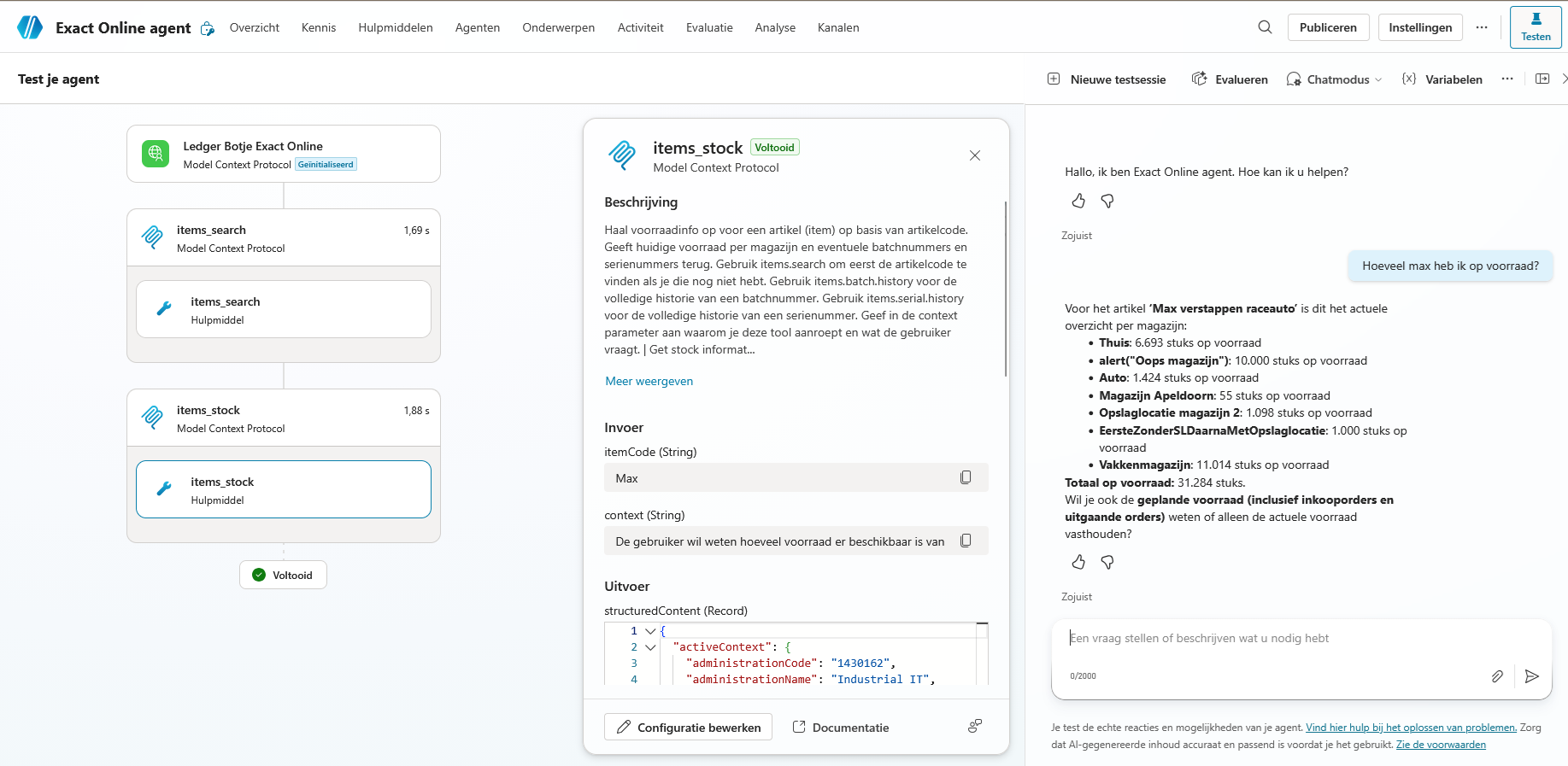
- On first use the agent asks you to connect: open Connection manager, click Connect, choose the Ledger Botje Exact Online connection and click Submit
- Done! Your agent now retrieves live data from Exact Online. The MCP tools page lists all available tools.

Claude Desktop
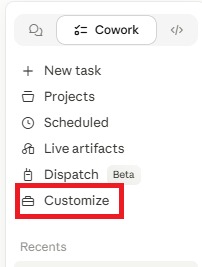
- Open Claude Desktop and select Customize
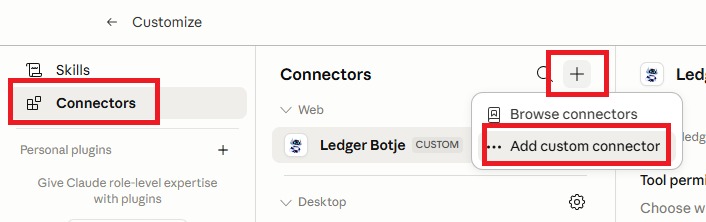
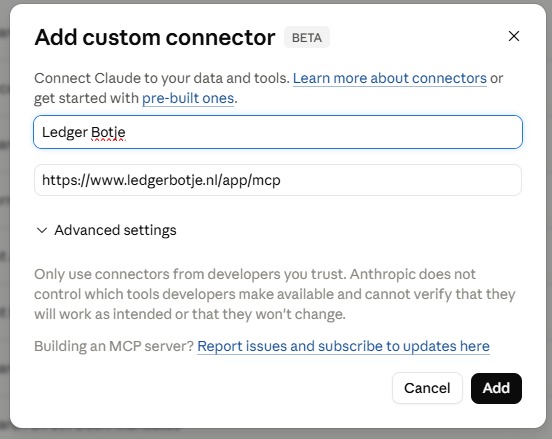
- Click Connectors, then the plus icon in the top right, and Add custom connector
- Enter Ledger Botje as the name and the URL:
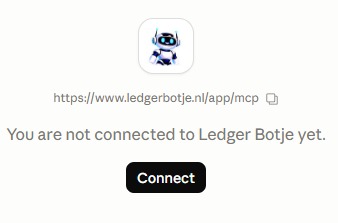
https://www.ledgerbotje.nl/app/mcp - Click Connect to start the connection
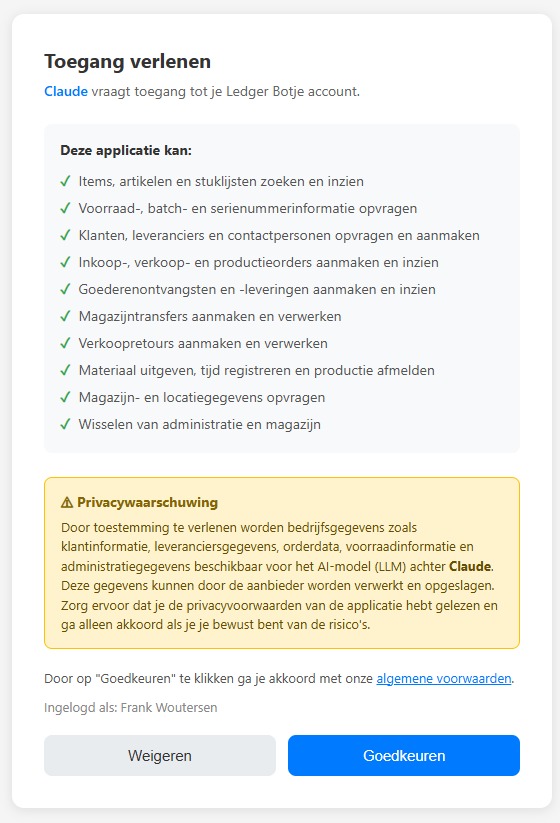
- Click Approve to grant Ledger Botje access to your Exact Online administration
- Ledger Botje is now connected to Claude and you can ask questions about your administration. The MCP tools page lists all available tools.

Google Gemini
- Install the Gemini CLI
- Run the following command:
gemini mcp add --transport http ledgerbotje https://www.ledgerbotje.nl/app/mcp
- You can also edit
~/.gemini/settings.jsonand add the JSON configuration manually - Authorize with your Exact Online account when prompted
- The tools are now available in your Gemini CLI session

Mistral (Le Chat)
- Open Le Chat and expand the Intelligence menu
- Click on Connectors
- Click + Add Connector > Add custom connector
- Enter the MCP server URL:
https://www.ledgerbotje.nl/app/mcp - Authentication is auto-detected
- In a chat: click Tools below the input field and enable the Ledger Botje connector

Perplexity
- Open the Perplexity app and go to Account Settings > Connectors
- Click Add Connector
- Add a remote connector with the URL:
https://www.ledgerbotje.nl/app/mcp - Choose authentication: OAuth 2.0
- Authorize with your Exact Online account
- The Ledger Botje tools are now available in your Perplexity conversations

Grok
- Grok supports MCP through the xAI API
- Add the MCP server to your API call via the
toolsarray - Specify the server URL:
https://www.ledgerbotje.nl/app/mcp - xAI manages the MCP connection automatically
- See the xAI documentation for details

Cursor
- Go to Cursor Settings > Tools & Integrations
- Click New MCP Server
- Choose type Streamable HTTP
- Enter the server URL:
https://www.ledgerbotje.nl/app/mcp - Save and restart Cursor
- Authorize with your Exact Online account when prompted
Or manually add to your mcp.json or .cursor/mcp.json:
{
  "mcpServers": {
    "ledgerbotje": {
      "url": "https://www.ledgerbotje.nl/app/mcp",
      "transport": "streamable-http"
    }
  }
}

OpenClaw
- Edit your
openclaw.jsonconfiguration file - Add the Ledger Botje server (see JSON configuration below)
- Restart your OpenClaw instance
- The tools are now available for your OpenClaw agents
Or manually add to your mcp.json or .cursor/mcp.json:
{
  "mcpServers": {
    "ledgerbotje": {
      "url": "https://www.ledgerbotje.nl/app/mcp",
      "transport": "streamable-http"
    }
  }
}
Claude Code
- Open a terminal
- Run the following command:
claude mcp add --transport http ledgerbotje https://www.ledgerbotje.nl/app/mcp
- Claude Code automatically detects the OAuth2 authentication mechanism
- Authorize with your Exact Online account in the browser that opens
- The Ledger Botje tools are now available in your Claude Code session
Available tools 214
After connecting, your AI assistant has access to 294 tools to manage your Exact Online administration. Below is a selection of the most used tools; the full overview is on the tools page.
Items & inventory (20)
- items_search — Search items by name, code or description
- items_create — Create a new item
- items_stock — Stock level of an item per warehouse
- items_update — Update an item
- items_delete — Delete an item
- items_suppliers — Supplier items and prices
- items_suppliers_create — Create a supplier item
- items_suppliers_update — Update a supplier item
- items_suppliers_delete — Delete a supplier item
- items_warehouses_create — Create an item-warehouse link
- items_warehouses_update — Update an item-warehouse link
- items_warehouses_delete — Delete an item-warehouse link
- items_batch_history — Full history of a batch number
- items_serial_history — Full history of a serial number
- inventory_batch_create — Reserve batch number for transaction
- inventory_batch_update — Update batch number quantity
- inventory_batch_delete — Delete batch number reservation
- inventory_serial_create — Reserve serial number for transaction
- inventory_serial_update — Update serial number link
- inventory_serial_delete — Delete serial number reservation
Sales orders (8)
- sales_orders_search — Search sales orders by customer, status or date
- sales_orders_get — Details of a sales order with lines
- sales_orders_create — Create a new sales order
- sales_orders_add_line — Add a line to a sales order
- sales_orders_update — Update a sales order
- sales_orders_delete — Delete a sales order
- sales_orders_update_line — Update a sales order line
- sales_orders_delete_line — Delete a sales order line
Purchase orders (8)
- purchasing_orders_search — Search purchase orders by supplier, status or date
- purchasing_orders_get — Details of a purchase order with lines
- purchasing_orders_create — Create a new purchase order
- purchasing_orders_add_line — Add a line to a purchase order
- purchasing_orders_update — Update a purchase order
- purchasing_orders_delete — Delete a purchase order
- purchasing_orders_update_line — Update a purchase order line
- purchasing_orders_delete_line — Delete a purchase order line
Goods receipts & deliveries (11)
- logistics_receipts_search — Search goods receipts
- logistics_receipts_get — Details of a goods receipt
- logistics_receipts_create — Post a goods receipt on a purchase order
- logistics_receipts_update — Update a goods receipt
- purchases_receipts_add_line — Add receipt line
- logistics_deliveries_search — Search goods deliveries
- logistics_deliveries_get — Details of a goods delivery
- logistics_deliveries_create — Post a goods delivery on a sales order
- logistics_deliveries_update — Update a goods delivery
- sales_deliveries_add_line — Add delivery line
- sales_deliveries_update_line — Update delivery line (notes, tracking)
Production & shop orders (43)
- manufacturing_orders_search — Search shop orders by status or item
- manufacturing_orders_get — Details of a shop order with materials
- manufacturing_orders_create — Create a new shop order
- manufacturing_orders_update — Update a shop order (dates, release, on hold, planning)
- manufacturing_orders_delete — Delete a shop order
- manufacturing_orders_receipt — Post a completion receipt on a shop order
- manufacturing_orders_routing — Routing steps of a shop order
- manufacturing_routing_update — Reschedule a routing step (dates, hours, work center)
- manufacturing_planning_overview — Planning overview per work center
- manufacturing_workcenters_list — All work centers with capacity
- manufacturing_workcenters_capacity — Capacity overview and utilization
- manufacturing_operations_list — All operations
- manufacturing_areas_list — Production areas
- manufacturing_materials_bom — Bill of materials (BOM) for an item
- manufacturing_bom_versions — BOM versions for an item
- manufacturing_materials_issue — Post a material issue
- manufacturing_materials_reversal — Reverse a material issue
- manufacturing_materialplan_update — Update material plan
- manufacturing_materials_by_product — Post a by-product receipt
- manufacturing_orders_reversal — Reverse a shop order receipt
- manufacturing_routing_add — Add routing step to shop order
- manufacturing_routing_delete — Delete routing step
- manufacturing_materialplan_add — Add material line to shop order
- manufacturing_materialplan_delete — Delete material line
- manufacturing_bom_material_add — Add BOM material
- manufacturing_bom_material_update — Update BOM material
- manufacturing_bom_material_delete — Delete BOM material
- manufacturing_bom_version_create — Create BOM version
- manufacturing_bom_version_update — Update BOM version
- manufacturing_bom_version_delete — Delete BOM version
- manufacturing_operations_create — Create operation
- manufacturing_operations_update — Update operation
- manufacturing_operations_delete — Delete operation
- manufacturing_operations_resource_create — Link resource to operation
- manufacturing_operations_resource_update — Update resource
- manufacturing_operations_resource_delete — Unlink resource
- manufacturing_workcenters_create — Create work center
- manufacturing_workcenters_update — Update work center
- manufacturing_workcenters_delete — Delete work center
- manufacturing_areas_create — Create production area
- manufacturing_areas_update — Update production area
- manufacturing_areas_delete — Delete production area
- items_time_create — Add time registration on an operation
Warehouse management (16)
- warehouse_list — Show all warehouses
- warehouse_create — Create a warehouse
- warehouse_update — Update a warehouse
- warehouse_delete — Delete a warehouse
- warehouse_current — Current active warehouse
- warehouse_switch — Switch warehouse
- warehouse_locations_list — Locations in a warehouse
- warehouse_locations_stock — Stock per warehouse location
- warehouse_transfers_search — Search warehouse transfers
- warehouse_transfers_get — Details of a warehouse transfer
- warehouse_transfers_create — Create a warehouse transfer
- warehouse_transfers_update — Update a warehouse transfer
- warehouse_transfers_delete — Delete a warehouse transfer
- warehouse_transfers_update_line — Update a transfer line
- warehouse_transfers_delete_line — Delete a transfer line
- warehouse_transfers_process — Process a warehouse transfer
Customers & suppliers (14)
- accounts_search — Search customers and suppliers
- accounts_addresses_search — Search addresses of customers and suppliers
- accounts_create — Create a new customer or supplier
- accounts_update — Update an existing account
- accounts_delete — Delete an account
- accounts_addresses_create — Create an address for an account
- accounts_addresses_update — Update an address
- accounts_addresses_delete — Delete an address
- accounts_contacts_create — Create a contact person
- accounts_contacts_update — Update a contact person
- accounts_contacts_delete — Delete a contact person
- crm_bankaccounts_create — Add bank account
- crm_bankaccounts_update — Update bank account
- crm_bankaccounts_delete — Delete bank account
Sales returns (8)
- sales_returns_search — Search sales returns
- sales_returns_get — Details of a sales return
- sales_returns_create — Create a sales return
- sales_returns_delete — Delete a sales return
- sales_returns_add_line — Add a line to a sales return
- sales_returns_update_line — Update a sales return line
- sales_returns_delete_line — Delete a sales return line
- sales_returns_process — Process a sales return
Assembly (2)
- manufacturing_assembly_search — Search assembly orders
- manufacturing_assembly_finish — Finish an assembly order
Invoicing (14)
- financial_invoices_sales_search — Search sales invoices
- financial_invoices_sales_get — Details of a sales invoice
- sales_invoices_create — Create sales invoice
- sales_invoices_update — Update sales invoice
- sales_invoices_delete — Delete sales invoice
- sales_invoices_add_line — Add invoice line
- sales_invoices_update_line — Update invoice line
- sales_invoices_delete_line — Delete invoice line
- financial_invoices_purchase_search — Search purchase invoices
- financial_invoices_purchase_get — Details of a purchase invoice
- purchases_invoices_create — Create purchase invoice
- purchases_invoices_update — Update purchase invoice
- purchases_invoices_delete — Delete purchase invoice
- financial_invoices_outstanding — Get outstanding invoices
Financial (10)
- financial_accounts_gl_search — Search GL accounts
- financial_glaccounts_create — Create GL account
- financial_glaccounts_update — Update GL account
- financial_glaccounts_delete — Delete GL account
- financial_transactions_lines_search — Search transaction lines (journal entries)
- financial_transactions_bank_search — Search bank entries
- financial_transactions_bank_get — Details of a bank entry
- financial_bank_create — Create a bank entry
- financial_bank_delete — Delete a bank entry
- financial_bank_add_line — Add a bank entry line
Quotations & opportunities (20)
- sales_quotations_search — Search quotations
- sales_quotations_get — Details of a quotation
- crm_quotations_create — Create a quotation
- crm_quotations_update — Update a quotation
- crm_quotations_delete — Delete a quotation
- crm_quotations_add_line — Add a quotation line
- crm_quotations_update_line — Update a quotation line
- crm_quotations_delete_line — Delete a quotation line
- crm_quotations_add_charge_line — Add a quotation charge line
- crm_quotations_update_charge_line — Update a quotation charge line
- crm_quotations_delete_charge_line — Delete a quotation charge line
- sales_opportunities_search — Search sales opportunities
- sales_opportunities_get — Details of a sales opportunity
- crm_opportunities_create — Create a sales opportunity
- crm_opportunities_update — Update a sales opportunity
- crm_opportunities_delete — Delete a sales opportunity
- sales_prices_search — Search sales prices per customer/item
- sales_prices_create — Create a sales price
- sales_prices_update — Update a sales price
- sales_prices_delete — Delete a sales price
Projects & time tracking (11)
- projects_search — Search projects
- projects_get — Details of a project
- projects_create — Create project
- projects_update — Update project
- projects_delete — Delete project
- projects_planning_create — Create project planning
- projects_planning_update — Update project planning
- projects_planning_delete — Delete project planning
- time_transactions_search — Search time registrations
- projects_timecost_update — Update a time transaction
- projects_timecost_delete — Delete a time transaction
Subscriptions (8)
- subscriptions_search — Search subscriptions
- subscriptions_get — Details of a subscription
- subscriptions_create — Create subscription
- subscriptions_update — Update subscription
- subscriptions_delete — Delete subscription
- subscriptions_add_line — Add subscription line
- subscriptions_update_line — Update subscription line
- subscriptions_delete_line — Delete subscription line
Cashflow (14)
- cashflow_conditions_search — Search payment conditions
- cashflow_conditions_create — Create a payment condition
- cashflow_payments_search — Search outstanding payments
- cashflow_payments_get — Details of a payment
- cashflow_payments_update — Update a payment
- cashflow_payments_process — Process payments
- cashflow_receivables_search — Search outstanding receivables
- cashflow_receivables_get — Details of a receivable
- cashflow_receivables_update — Update a receivable
- cashflow_mandates_search — Search direct debit mandates
- cashflow_mandates_create — Create a direct debit mandate
- cashflow_mandates_update — Update a direct debit mandate
- cashflow_mandates_delete — Delete a direct debit mandate
- cashflow_banks_list — List available banks
Administration & system (7)
- admin_administration_list — Show available administrations
- admin_administration_current — Current active administration
- admin_administration_switch — Switch administration
- admin_shipping_methods_list — Available shipping methods
- admin_units_list — Available units of measure
- admin_currencies_list — Available currencies
- feedback_submit — Submit feedback about Ledger Botje
Security
Ledger Botje is built with security as a priority.
OAuth 2.1 with PKCE
Authentication via the most secure OAuth protocol. PKCE prevents token interception, even on public clients.
HTTPS/TLS encryption
All data traffic between your AI assistant and the MCP server is encrypted via HTTPS.
Tokens expire automatically
Access tokens are valid for 1 hour and are automatically refreshed. When revoked, access is terminated immediately.
Servers in the Netherlands
Our servers are in the Netherlands; our own processing does not leave the EEA. If your AI assistant processes outside the EU, the policy of that provider applies.
Exact Online permissions structure
Ledger Botje respects the permissions of your Exact Online account. You only see data you have access to.
Revoke connection anytime
You can revoke the connection at any time from your Ledger Botje account or from Exact Online.
Requirements
This is what you need to get started with Ledger Botje.
- A Ledger Botje account (free to create)
- An active Exact Online environment
- An AI assistant with MCP support (ChatGPT, Claude, Cursor, etc.)
- Basic plan for read-only access, Advanced for read and write
Frequently asked questions about MCP setup
Answers to frequently asked questions about setting up the MCP server for Exact Online.
Create a free account at Ledger Botje, connect your Exact Online administration via OAuth2 and add the Ledger Botje MCP server to your AI assistant using the URL above. The entire process takes less than 5 minutes.
ChatGPT, Claude, Microsoft Copilot, Google Gemini, Cursor, Mistral, Perplexity, Grok and OpenClaw support the MCP protocol. Any AI assistant with MCP support is automatically compatible with Ledger Botje.
Check that you have entered the correct server URL and that your Exact Online account is properly connected. Make sure your AI assistant supports the "Streamable HTTP" type. Contact us if the problem persists.